Open checks from Clover, with a count of every item on the ticket. The clock starts when the food is rung in. Tap an item when it is done, then bump the ticket.
iPhone and iPad open the App Store page for KDS Restaurant. Android opens the Google Play page for KDS.
🍽️ Clover Connected
Features
Tickets like Clover, plus a summary
The board lists each ticket the way the Clover KDS does. You can mark one item complete on a ticket. You can also summarize one ticket, or more than one ticket at the same time.
📋
Summarize 1 ticket or many
Check one ticket and the summary shows only that ticket. Check more tickets and the summary adds them together. The last checked ticket stays checked.
✅
Mark one item complete
Tap a single item on a ticket to mark that item complete. The rest of the ticket stays on the board. Tap the item again to undo it. Bump clears the whole ticket.
⏱️
Clock starts with the food
A bar tab can stay open for hours. The timer starts when Clover sends the food to the kitchen, then turns yellow at 5 minutes and red at 10.
🏷️
KDS printer label
Show only the items that carry your Clover printer label. Drinks without that label do not keep a finished food ticket open.
📋
Hold, bump, and closed
Hold parks a ticket. Bump moves it to Closed and freezes the time it took. Make active brings it back.
📱
Phone, tablet, or monitor
The same kitchen runs on iPhone, iPad, Android, and a touchscreen connected to a Mac, Windows PC, or Raspberry Pi.
In Action
What it looks like in your kitchen
This is the Clover-style ticket list, with a summary beside it. Check 1 ticket or more than 1 ticket. The summary lists the items still to make. Tap one item on a ticket to mark that item complete.
KDS · Table View · 1 or more tickets · tap one itemLive
Table 48 min
In summary
BUMP
Table 712 min
In summary
BUMP
Table 92 min
In summary
BUMP
1
Open the app
Sample tickets are on the board immediately, including the 10-item example, so the kitchen can see the tally before Clover is connected.
2
Connect Clover
In Settings, choose Clover account, United States and Canada, and enter the merchant ID and access token. Select the KDS printer label.
3
Mark items, then bump
Tap each item as it is plated. Bump sends the ticket to Closed and keeps the time it took.
Help
How the kitchen screen works
This is the same board on a phone, a tablet, and a kitchen monitor.
The open board
Open tickets are the checks still in the kitchen. Each ticket shows the table or order name, the server, and the items for this screen.
Tap an item to mark that item done. It stays on the ticket with a line through it and a green check. Tap it again to put it back. The rest of the ticket stays up.
The clock
The big time is how long the food has been in the kitchen. It starts when Clover sends those items to the kitchen, not when a bar tab was first opened. A tab can sit for hours and still show a short time when the food arrives.
The smaller time under it is when that clock started. The ticket turns yellow at 5 minutes and red at 10. Both can be changed in Settings.
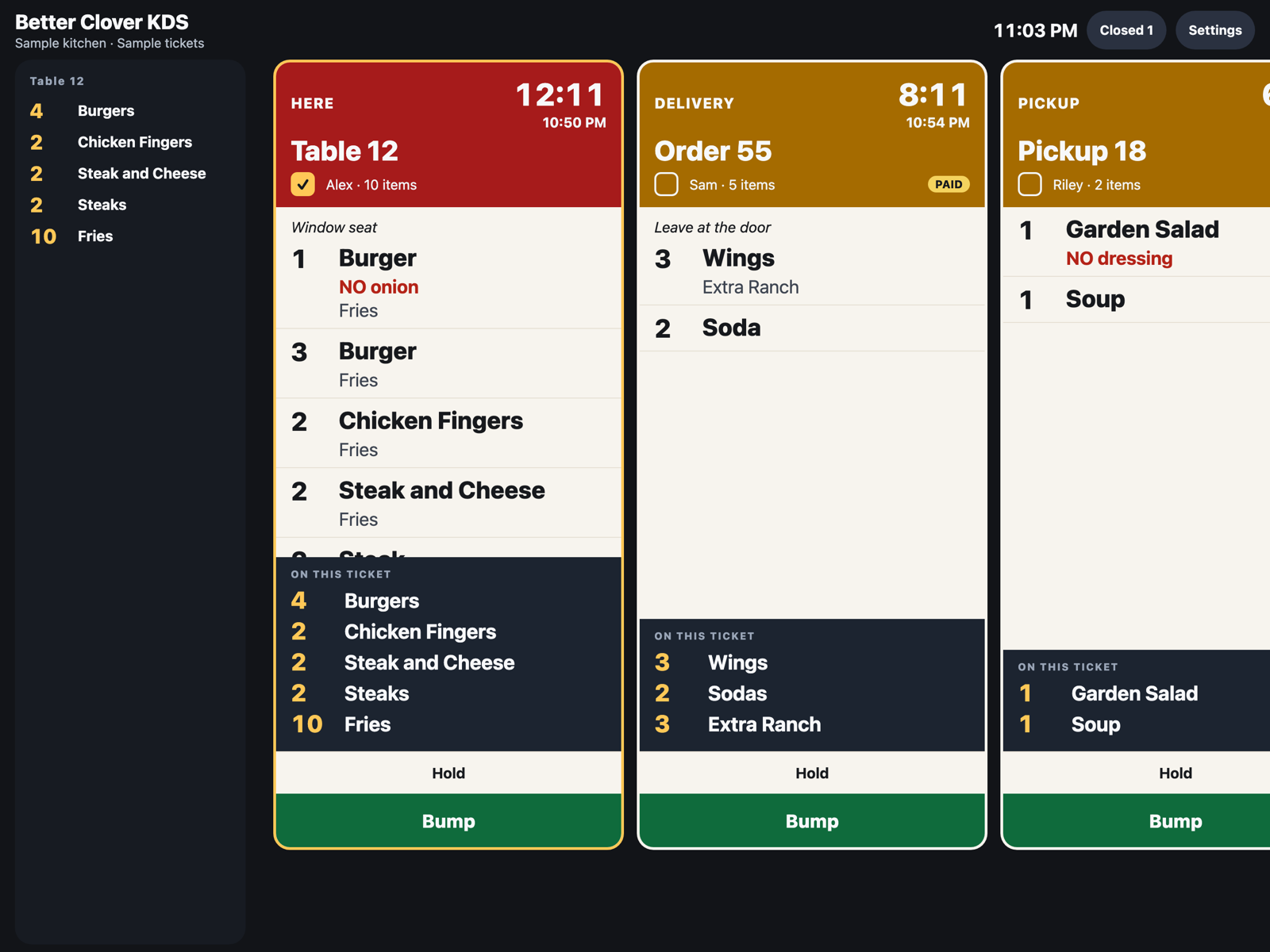
Table 12 is red after 12 minutes. Order 55 is yellow after 8. The summary on the left counts the checked ticket.
The summary
The summary counts what is still to make. The oldest open ticket is included on its own. Check the box on another ticket to add it. The counts combine. The last checked ticket stays checked.
An item marked done leaves the summary and the “On this ticket” count. Notes such as “NO onion” or “Medium” stay on the item and stay out of the summary.
Settings has “Include items under the main item.” On, nachos count the lettuce, tomato, and the other items under them. Off, the summary counts the nachos only. Save after changing it.
Hold, bump, and closed
Hold parks a ticket. Resume brings it back to the working list. Bump clears the whole ticket and moves it to Closed. The clock stops at the time it took.
Closed shows tickets from today, since midnight. Settings can switch that to a number of hours, which can include yesterday. Open a closed ticket and tap Make active to put it back on the board. That does not reopen a paid check in Clover.
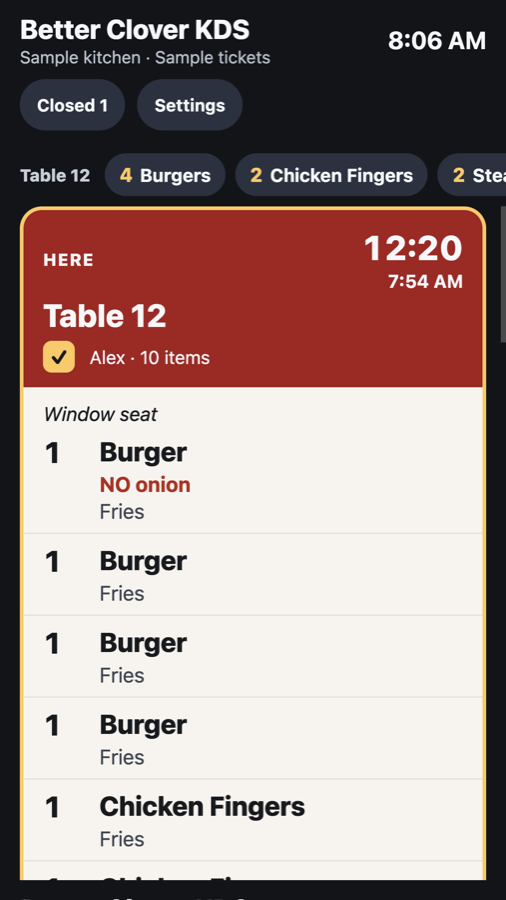
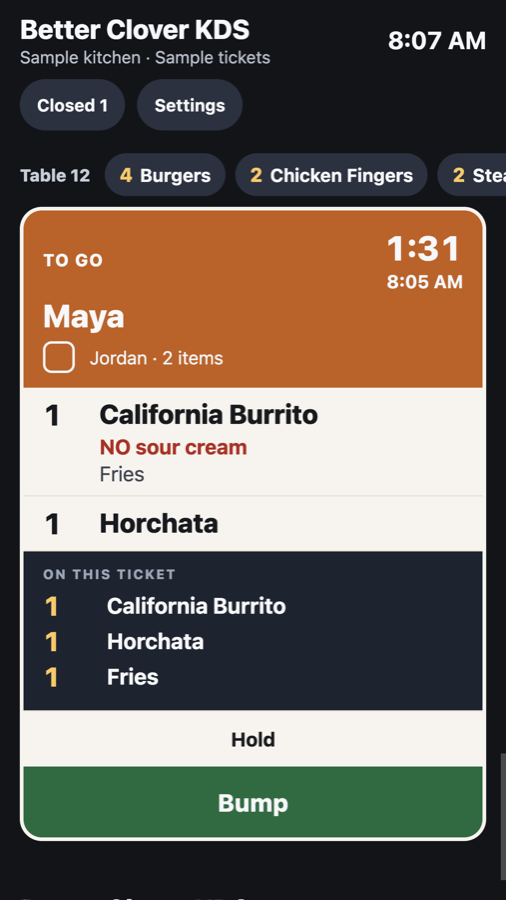
On a phone, the summary sits in chips above the tickets.On this ticket counts that check. Hold parks it. Bump clears it.
More than one screen
One kitchen can use one server, with every screen pointed at it. Each screen keeps its own printer labels. Grill can show Grill items and Fry can show Fry items from the same orders.
Marking one item done is shared. Bump clears that ticket on every screen. A ticket with nothing for the labels on this screen does not appear here.
Without a server, each phone talks to Clover on its own. A bump on that phone stays on that phone.
Sound
Settings has “Chime when a new ticket arrives.” It stays off until it is turned on and saved. Turning it on plays the chime once. A new ticket with no items for this screen’s labels stays quiet.
Phones and tablets can also vibrate when a new ticket arrives.
Connect Clover
Open Settings.
Choose Clover account.
Choose United States and Canada.
Enter the merchant ID and the access token. They stay on this device.
Select the printer labels this screen should show, or leave them all off to show every item.
Tap Save.
The token needs Orders Read. To see the printer labels in Settings, it also needs Read inventory. Sample tickets stay available under Settings if Clover is not connected yet.
Contact
Get in touch
Questions, feedback, or support? We'd love to hear from you.